Key takeaways
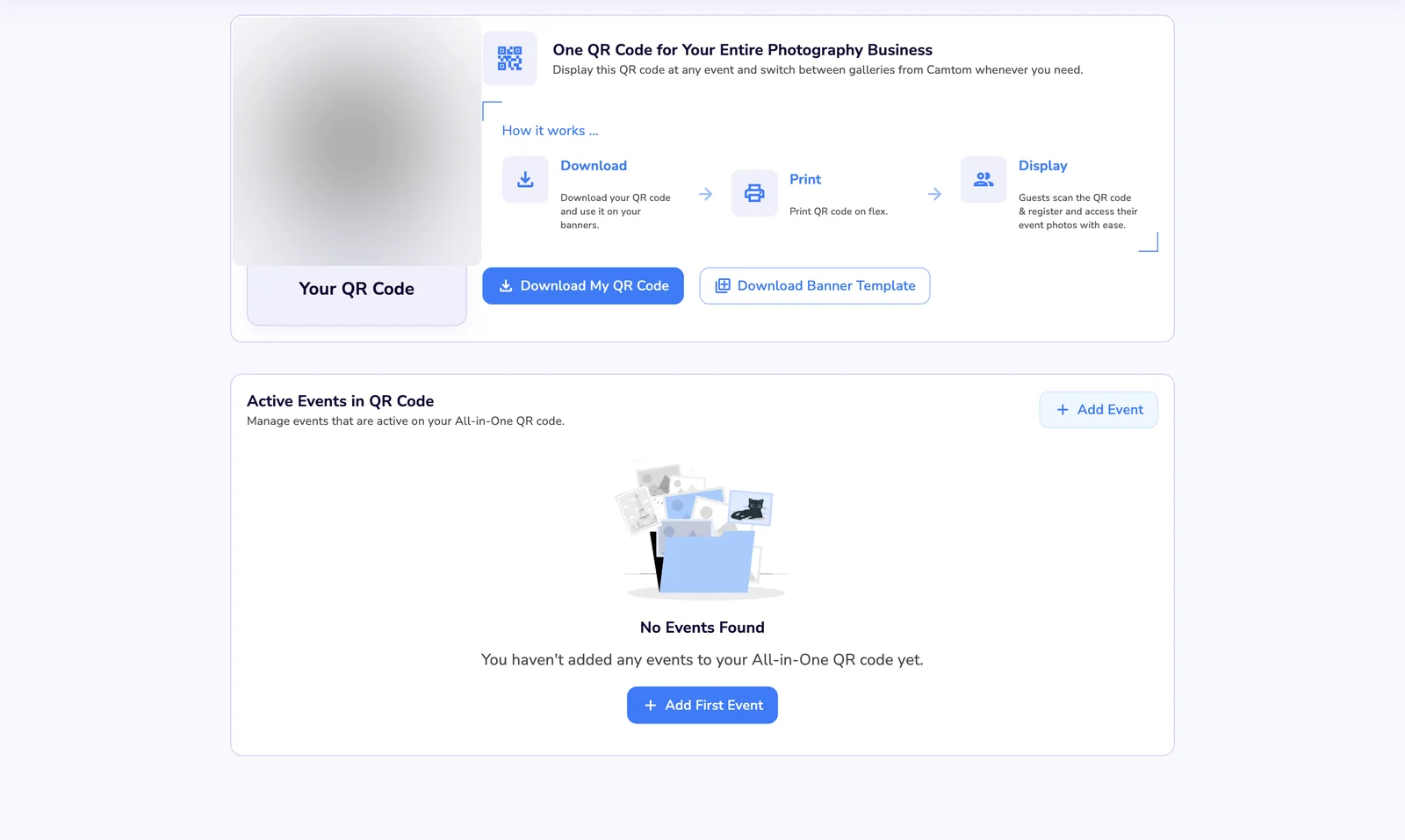
- One QR code at the venue: attendees scan, take a selfie and see only their photos.
- Upload live during the event, so people share while they are still there.
- Decide access and downloads in advance: free for delegates, paid for runners, locked down for schools.
- Anything involving children needs consent through the school and a private gallery.
01Why event photo delivery is different
At a wedding you deliver to one family. At a conference, a school annual day or a city run you deliver to hundreds or thousands of people, most of whom you will never meet. Four things change:
- Scale. With five thousand photos and eight hundred attendees, nobody scrolls to find themselves.
- Speed. Delegates post on LinkedIn the same evening; runners want their finish-line photo before they get home.
- Privacy. An open link to every photo of every attendee, or every child, is a risk you cannot take.
- The organiser's brand. The gallery is part of their event, not just your portfolio.
The old answers, one giant Drive link or “we'll send them to HR next week”, fail on all four.
02How face-recognition photo sharing works
- You upload photos to the event gallery, live during the event or after it.
- Attendees scan the event QR on a standee, badge, stage screen or agenda email.
- They take a selfie.
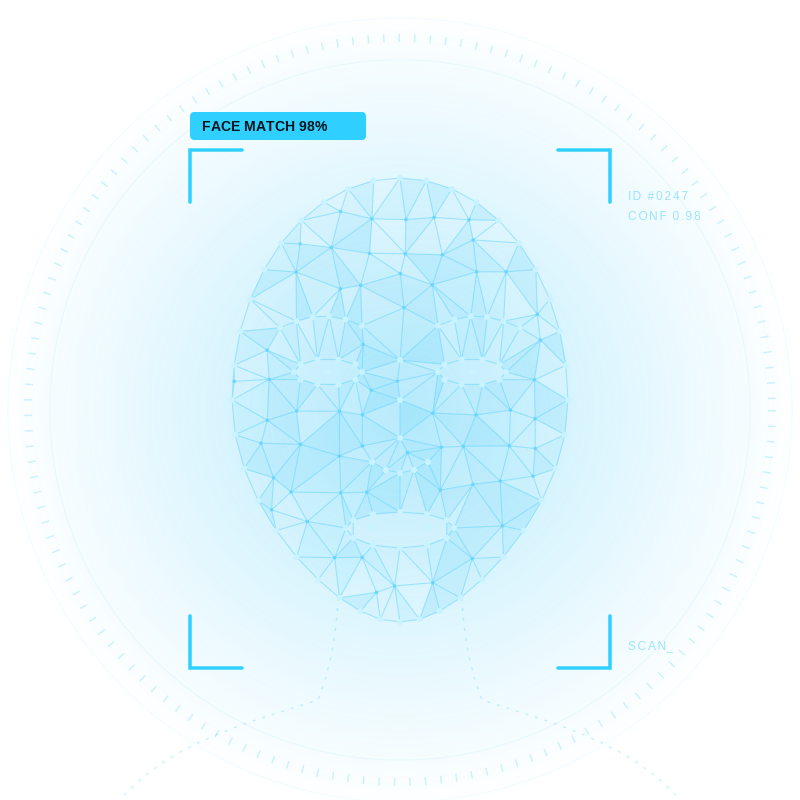
- CatEye AI matches the face across the whole event and shows only the photos that person appears in.
- The selfie is deleted. It is used only to match the face, then permanently removed.
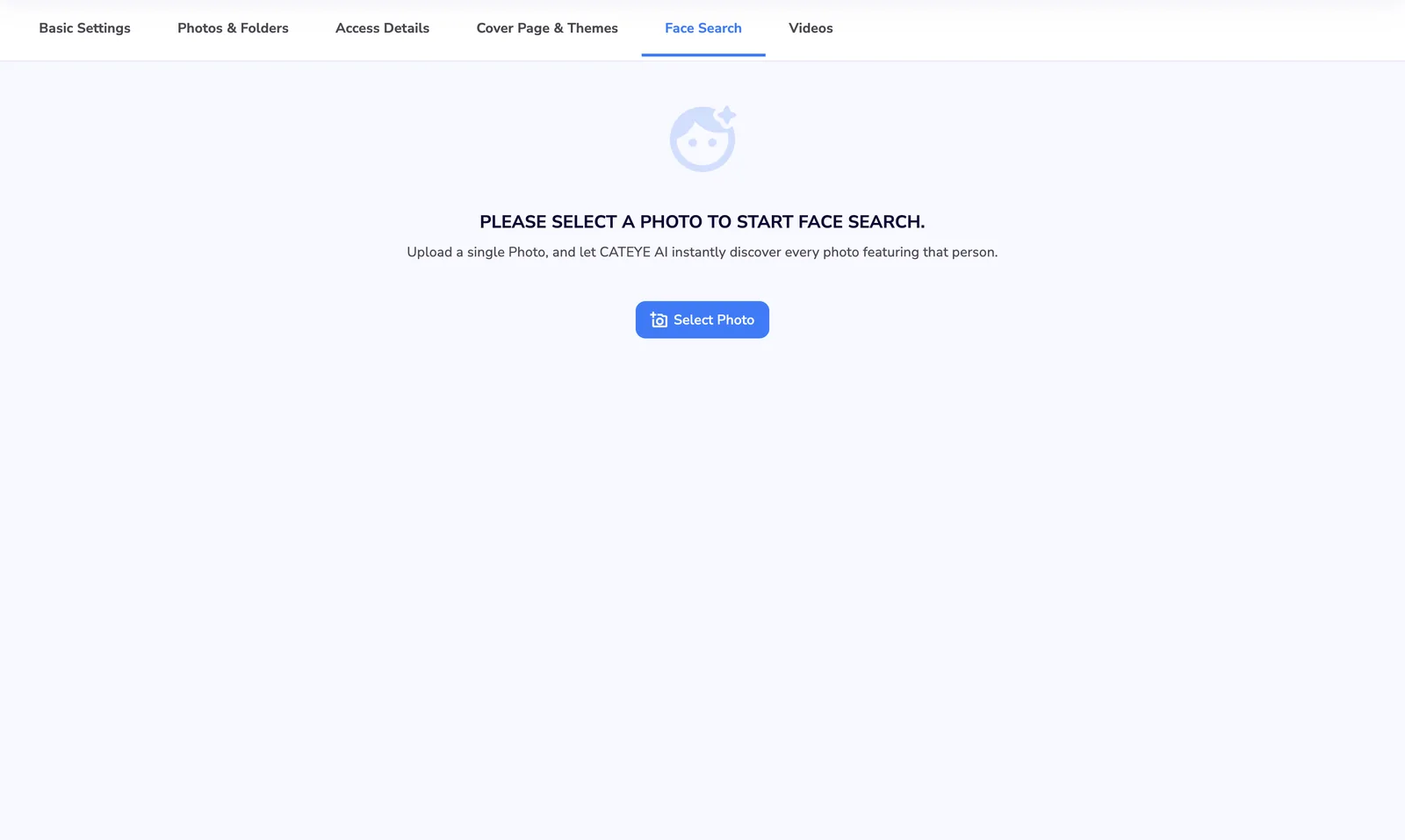
Organisers get one more trick: upload a single photo of a person, say the chief guest or the CEO, and see every frame they appear in within seconds.
03Where it works best
| Event | What attendees want | Suggested setup |
|---|---|---|
| Conferences & offsites | Photos with speakers and colleagues, for LinkedIn | Free downloads, the organiser's cover page, live upload |
| Launches & award nights | Stage and red-carpet moments, fast | Live upload; screenshots off until the official release |
| Marathons, rides & sports | Their own race photos | Paid downloads at a per-photo price |
| College fests & convocations | Photos with friends, the degree moment | Selfie guest mode, free or paid downloads |
| School annual & sports days | Parents want their child's photos | Private gallery, PIN, selfie-only access, consent through the school |
| Exhibitions & trade shows | Photos at the booth | Guest registration before viewing, with consent |
04The setup playbook
Before the event
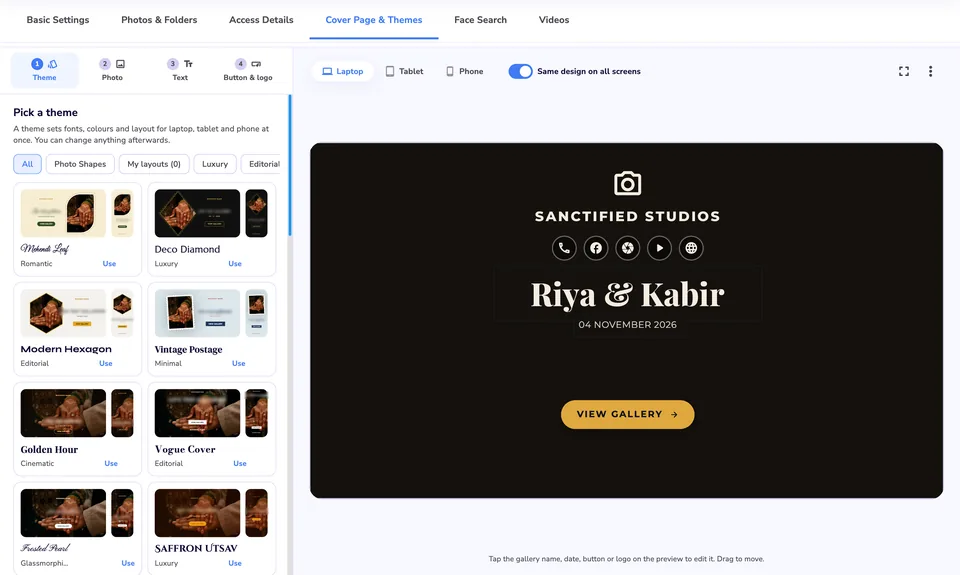
- Create the event gallery with a cover page carrying the organiser's logo and the event name.
- Choose how people get in: the Face AI event QR, a 4-digit PIN, a registration-free VIP link, or guest registration before viewing.
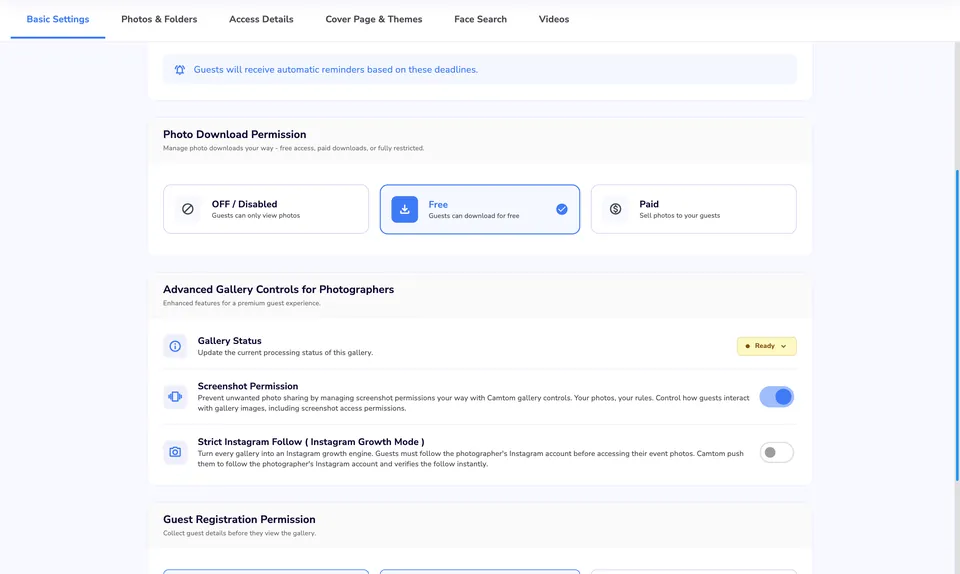
- Decide downloads (off, free or paid) and screenshot permission, and set your watermark.
- Print the QR big and place it where people wait: registration, the photo booth, the coffee queue, the finish line.
- Get the link into the agenda: the joining email, the WhatsApp group and a slide on the stage screen.
During the event
- Upload live from DSLR, mirrorless and phones with the free Camera Event Connect app for Android, so attendees see photos while they are still in the room.
- Upload the best frames first. Speed beats completeness during the event; the full edit can follow.
- Remind people with a QR slide during breaks and an announcement from the stage.
After the event
- Upload the full edit and add highlight films as YouTube links next to the photos.
- Send the organiser a wrap-up: who opened the gallery (you can export the guest list to Excel) and, for paid events, the download history.
- Set a deadline if the organiser wants selections for a printed album or an annual report.
05Privacy and consent checklist
- Say how it works on the standee: “Your selfie is used only to find your photos and is deleted after matching.”
- Keep galleries private with a PIN or registration rather than an open link.
- Use selfie-only access for sensitive events, so each guest sees only the photos they appear in.
- Turn screenshots off where photos should not travel.
- Agree on admin access: who at the organiser can see every photo.
India's Digital Personal Data Protection Act, 2023 treats anyone under 18 as a child and requires verifiable consent from a parent before their personal data is processed. Work through the school, get written consent, keep school galleries locked down, and check the details with the school's legal advisor. This is general information, not legal advice.
06How to price instant event delivery
Face search and live upload save attendees hours and make the organiser look good. Price that value instead of giving it away:
- Sell it as an add-on to your coverage: “instant delivery with face search”, priced per event and scaled to the number of attendees.
- For runs and sports, keep coverage affordable for the organiser and earn from paid downloads at a per-photo price.
- For corporate clients, include free attendee downloads in a higher package: a perk HR can announce.
Our photography pricing guide shows how to work out the base numbers.
07Five mistakes to avoid
- A QR code that is too small, or placed where nobody stops.
- Uploading only after the event, when the excitement and the sharing have passed.
- An open link for a school event. Always use a PIN, registration or selfie-only access.
- Forgetting the VIP search. The organiser will ask for every photo of the chief guest; find them in seconds by searching with one photo.
- Not explaining the selfie. One line about deletion puts people at ease.
Camtom's photo sharing app lets every guest find their own photos with one selfie, and face recognition is included in one affordable yearly plan.
08Frequently asked questions
How does face recognition photo sharing work at events?
Attendees scan the event QR code and take a selfie. CatEye AI matches their face across the event's photos and shows only the photos they appear in.
Do attendees need to install an app?
Guests scan the QR code and take a selfie to find their photos. Camtom galleries open on the web, Android and iPhone.
What happens to the selfies?
A selfie is used only to match the face and is then permanently deleted.
Can I charge for photos at marathons and sports events?
Yes. Set the gallery's downloads to paid and choose a price per photo; every paid download appears in your download history.
Can face recognition be used at school events?
Yes, with care: get verifiable parental consent through the school, keep the gallery private with a PIN or selfie-only access, and turn off downloads or screenshots where the school asks.
How accurate is CatEye AI with large crowds?
CatEye AI is built for events with thousands of guests, and Camtom rates its face recognition at 99% accuracy. Good light and a selfie without sunglasses give the best matches.