Uploading 4,000 full-size RAW files so a family can pick 300 makes no sense. It takes hours, fills your Drive and the files won't even open on a phone. But selecting from small JPGs creates a different problem: afterwards someone has to find the matching originals, one file number at a time.
A good selection workflow gives you both: light previews for the client, originals for you.
01The workflow
- Back up the originals (RAW or full-size JPG) to your hard disk or NAS as usual, one folder per function.
- Export light JPG previews with the same file names, and upload them to the event gallery in Camtom.
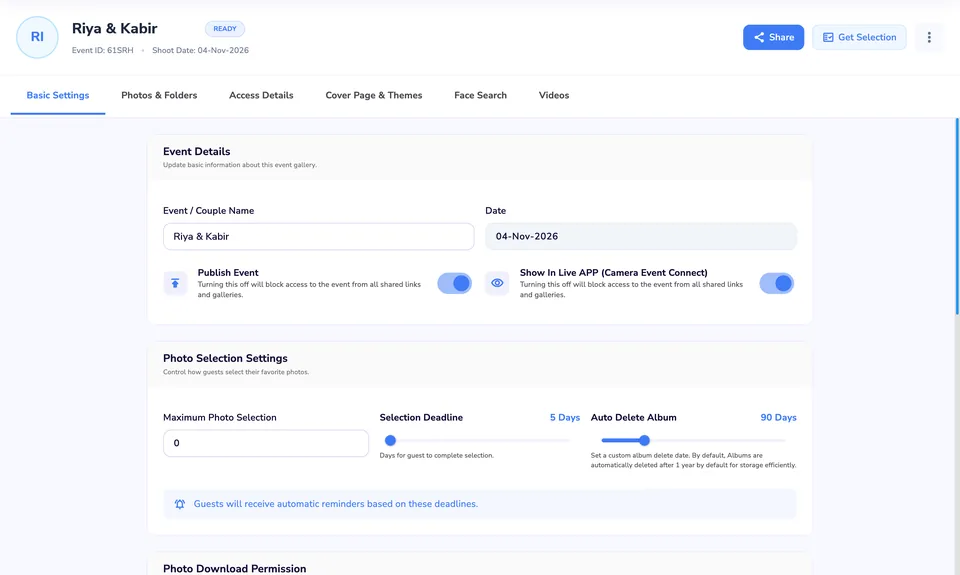
- Share the gallery with a selection limit and deadline. The family selects, marks important photos and rejects the ones they don't want.
- Get selection. When the family is done, select your original backup folder. Camtom matches the selected photos to your originals by file name and collects them into a new folder. Turn on RAW sorting (ignore file extensions) so
DSC_1234.jpgmatchesDSC_1234.CR3or.NEF. - Start editing and album design with only the final selected originals.
The one rule: keep the file names of your previews the same as the originals. That is how the selection is matched back to your RAW files.
02Why it saves so much time
- No downloading the selection from the cloud.
- No matching numbers from WhatsApp screenshots.
- No renaming files.
- The upload is small, so galleries go out the same night.
03Track your backups too
Six months later, the family wants ten more photos printed. Which hard disk has that wedding? Camtom's photos data management keeps a list of your storage drives, the events on each, and total, used and remaining space — and each order has a photos data tab.
04Where the files live
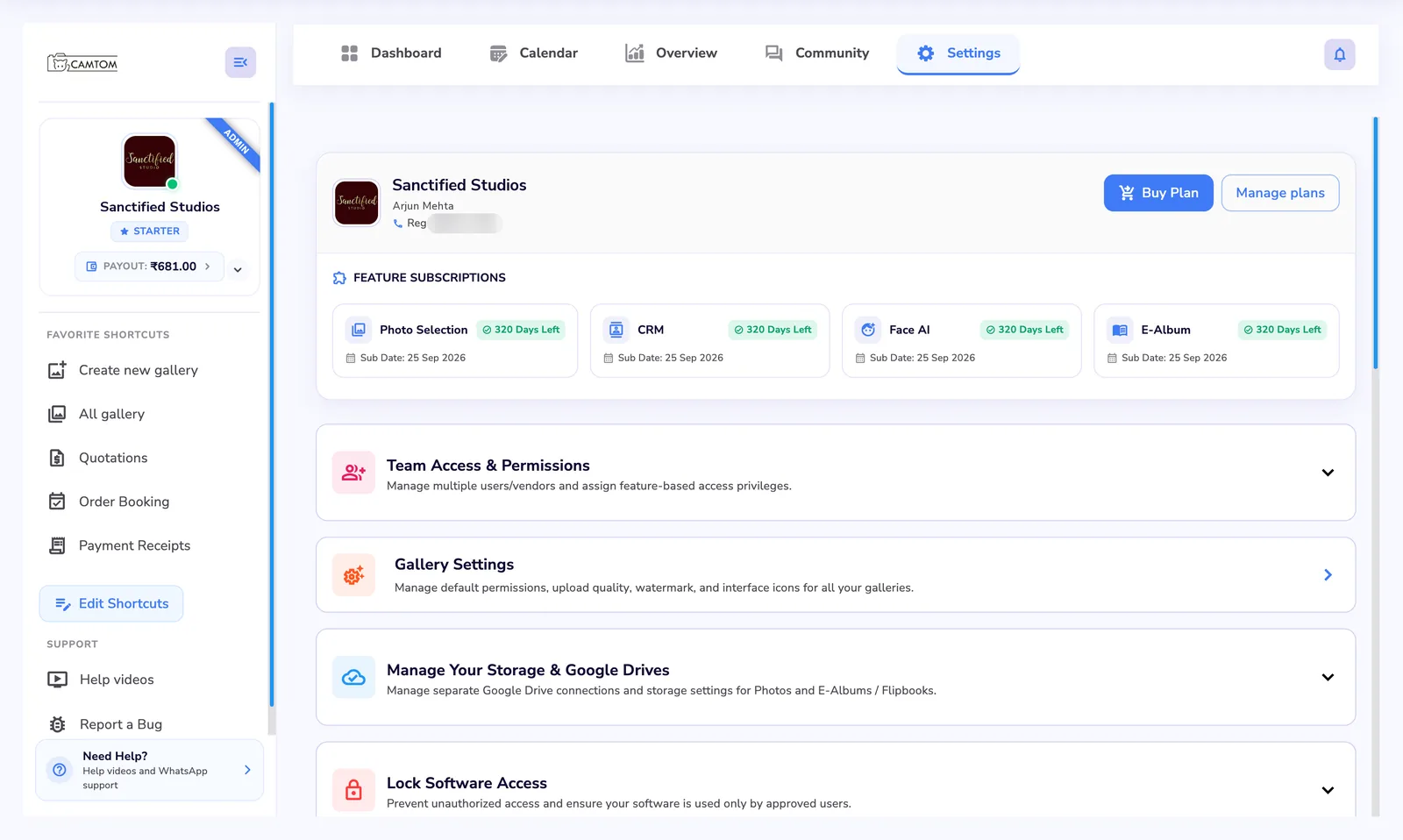
Camtom works with your own Google Drive for galleries, so previews sit in your Drive, not on someone else's servers. Your originals stay on your own disks. You can even connect separate Google Drives for photos and for e-albums.
05Frequently asked questions
Does Camtom work with RAW files?
Yes. Upload compressed images for selection, and Camtom collects the original RAW files of the selected photos from your backup drive.
Do I have to upload RAW files online?
No. Clients select from JPG previews; your RAW originals stay on your own drive.
What if the file names don't match?
Keep preview file names the same as your originals when you export, so the selection can be matched to the original files.